
Connect the number you already use in the WhatsApp Business app
Keep using the WhatsApp Business app on your phone and get the same number in a shared team inbox. Every Meta and phone screen, step by step, in about ten minutes. About 10 minutes.
Before you start
- A computer AND the phone with the number, side by side: the last part happens on the phone.
- The WhatsApp Business app, version 2.24.17 or newer. Update it from the Play Store or App Store first.
- A personal WhatsApp account (the green app) cannot be connected. Move the number to the free WhatsApp Business app first — your chats are kept.
- A plan or the free trial is active (Billing → Start free trial), and you can sign in to the Facebook account that runs your business.
- The number is not connected to another provider: a number can be on only one platform at a time.
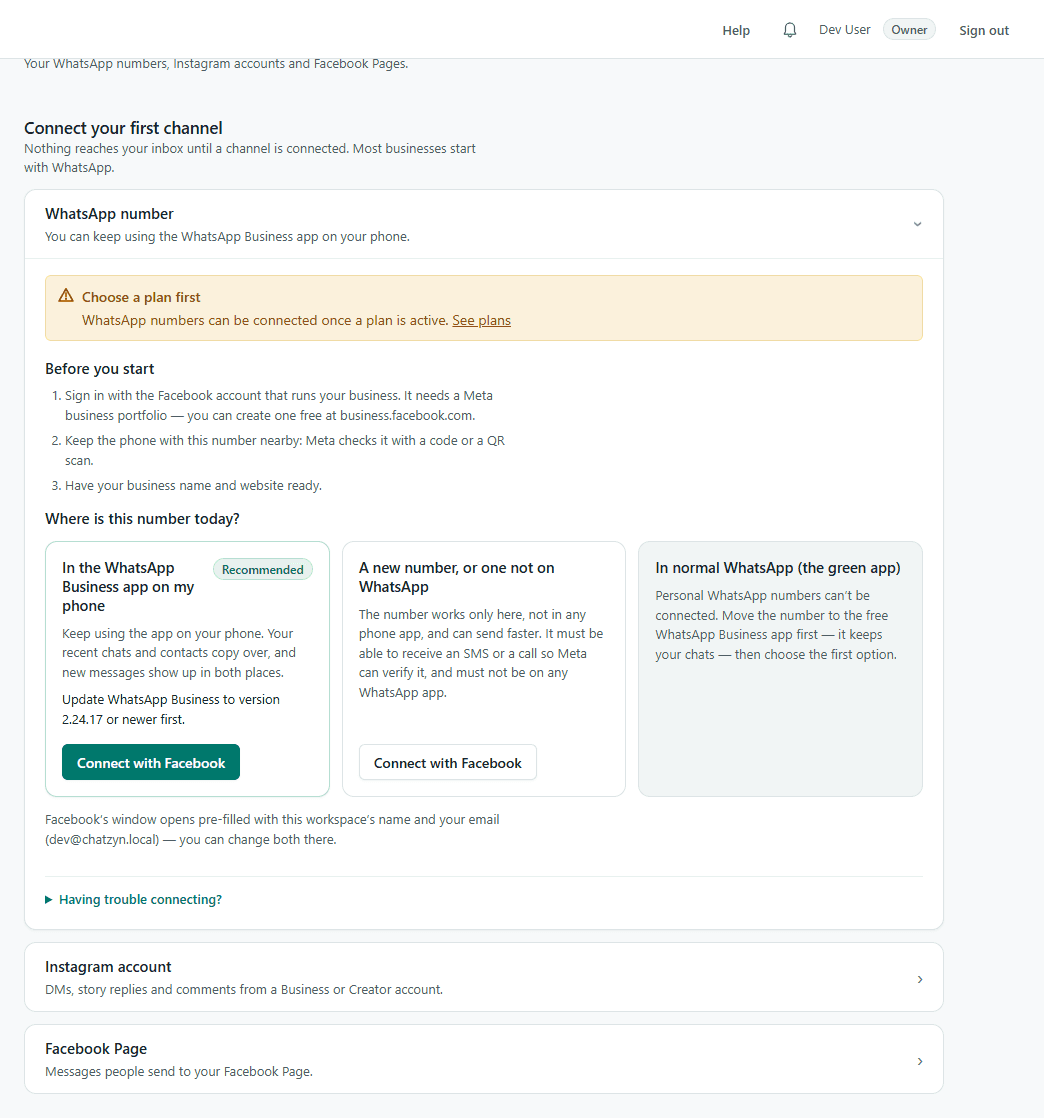
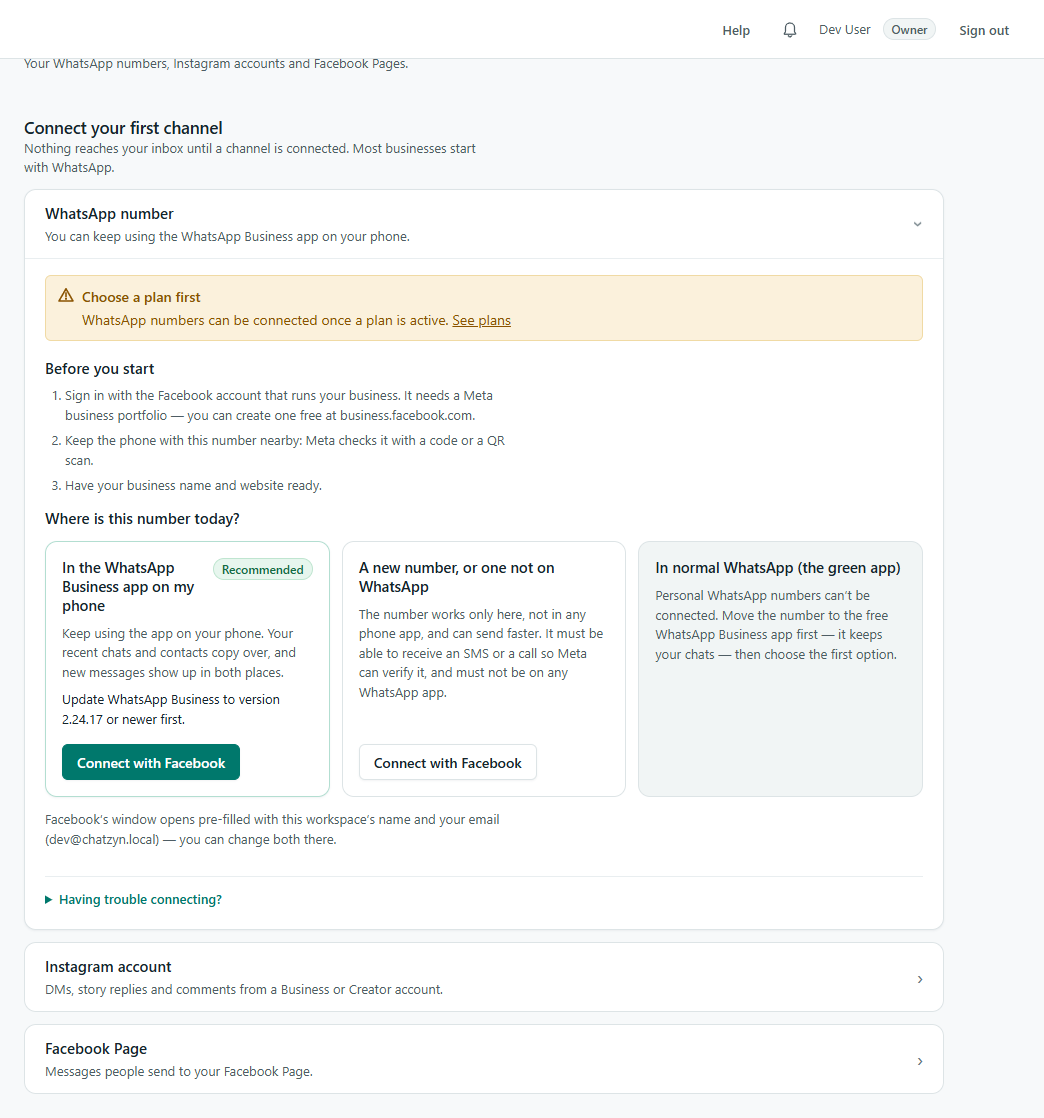
1.Open Settings → Channels → WhatsApp number
Choose the first option, “In the WhatsApp Business app on my phone (recommended)”, and press “Connect with Facebook”.
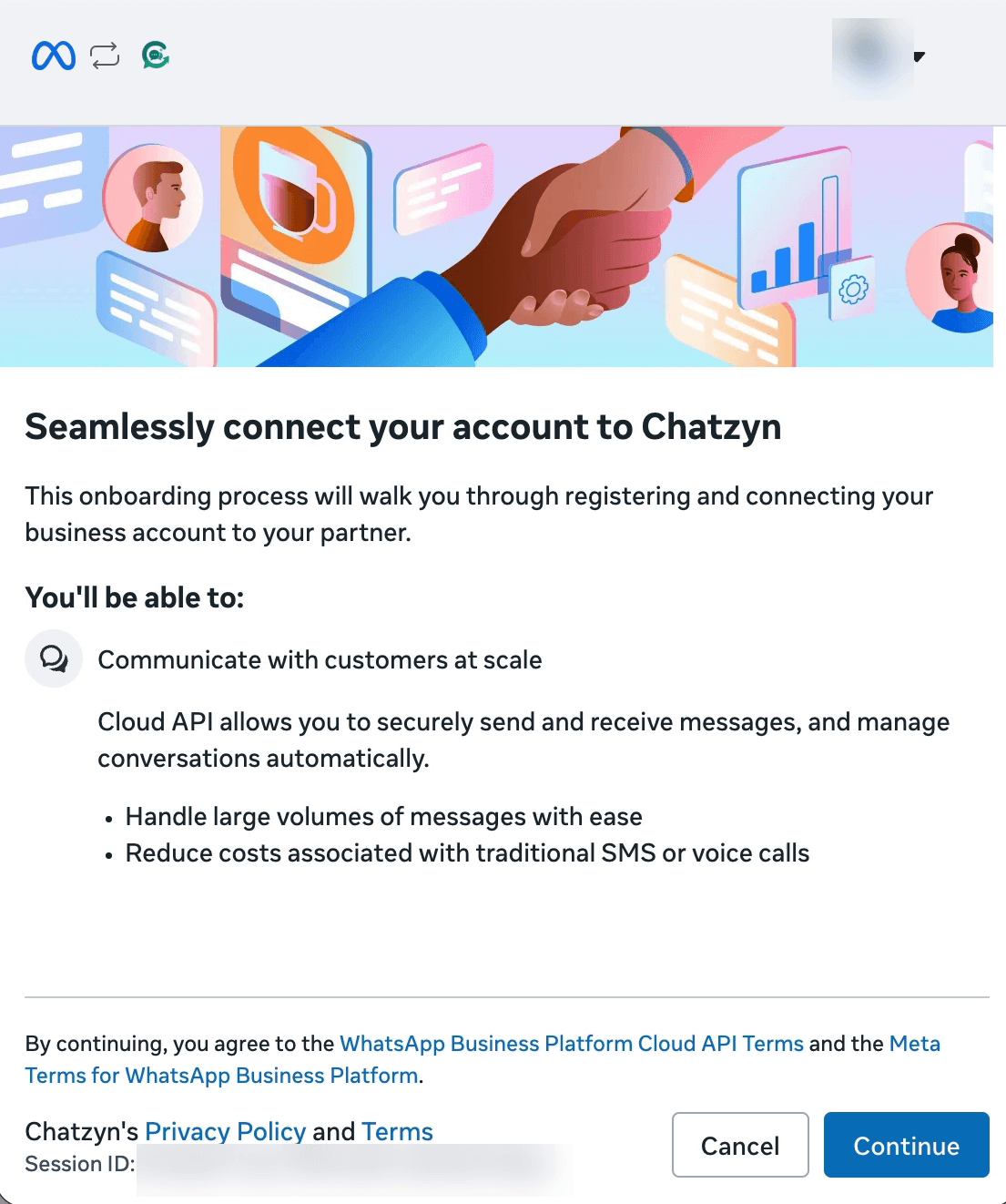
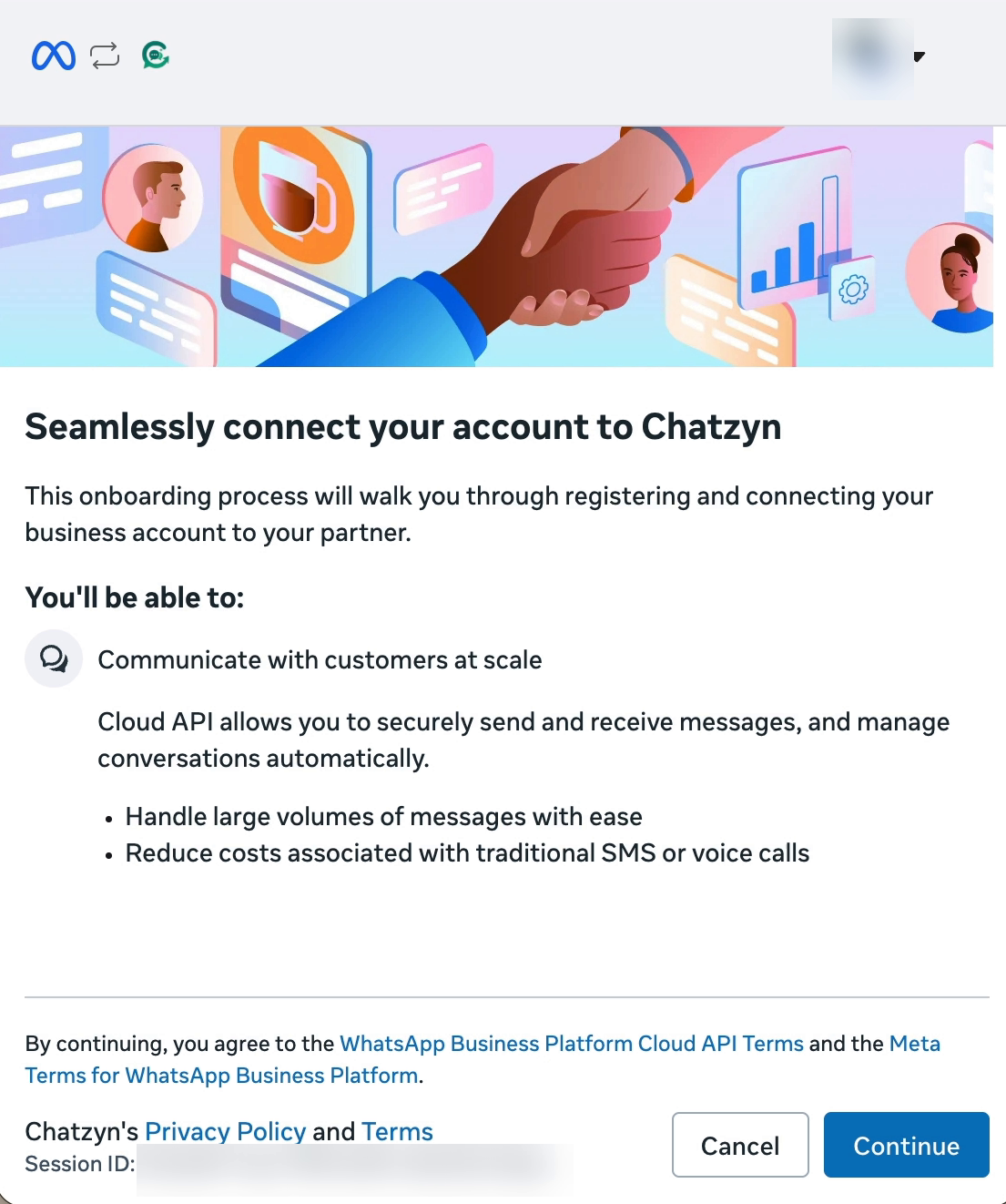
2.Press Continue in Meta's window
A Facebook window opens. It uses whichever Facebook account is signed in to this browser, so check it is your business one, then press Continue. Keep this window open throughout.
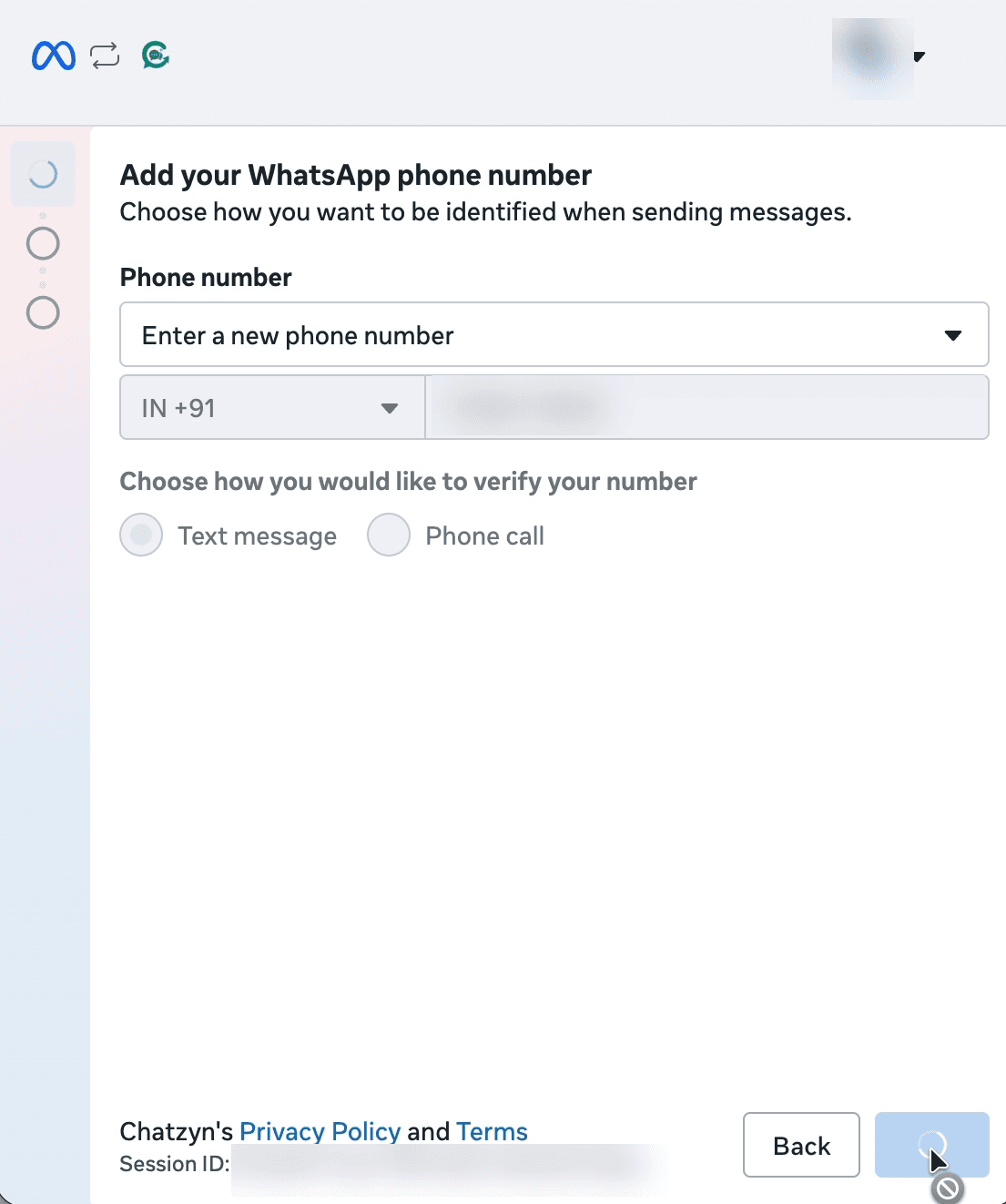
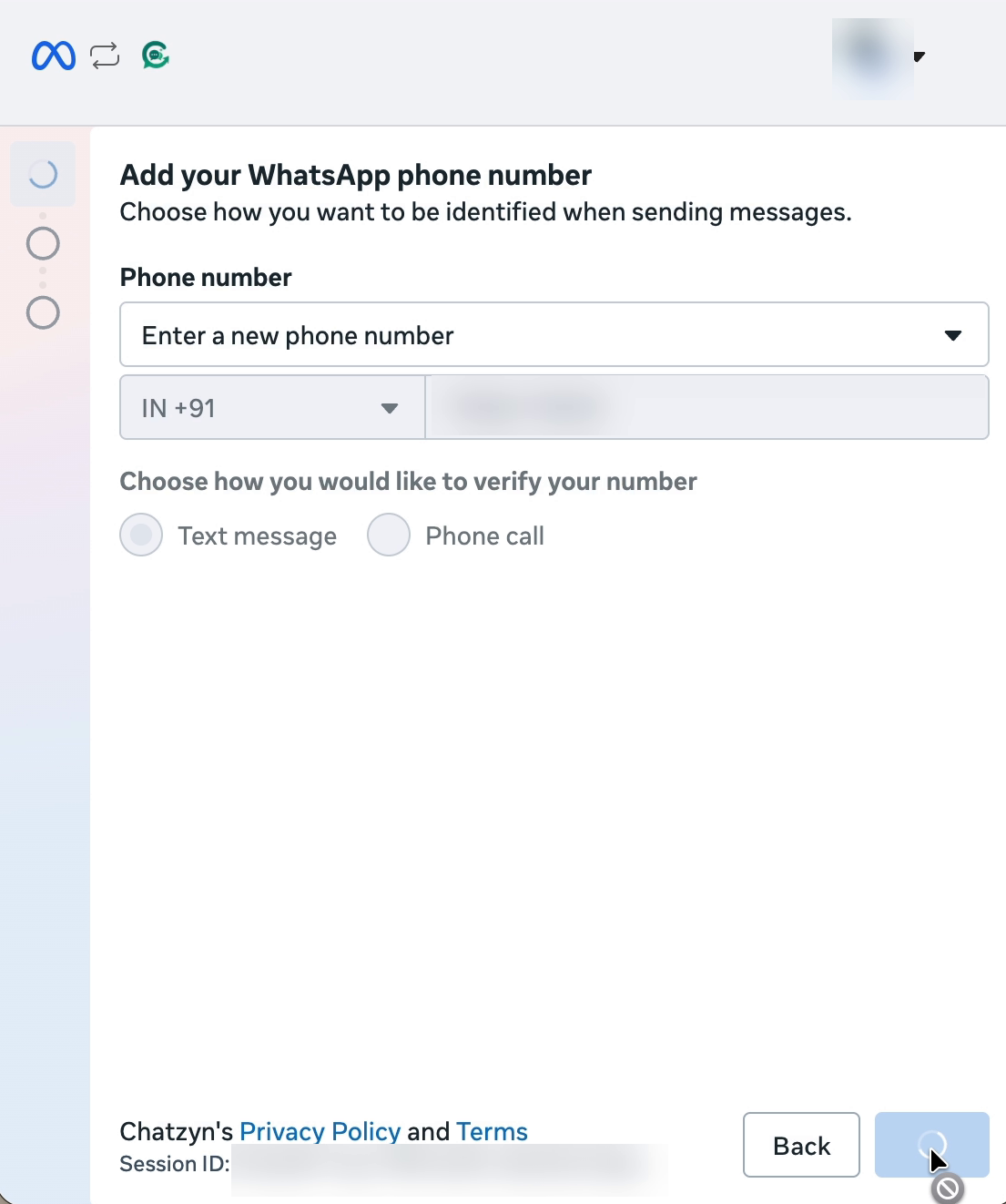
3.Enter the number you already use
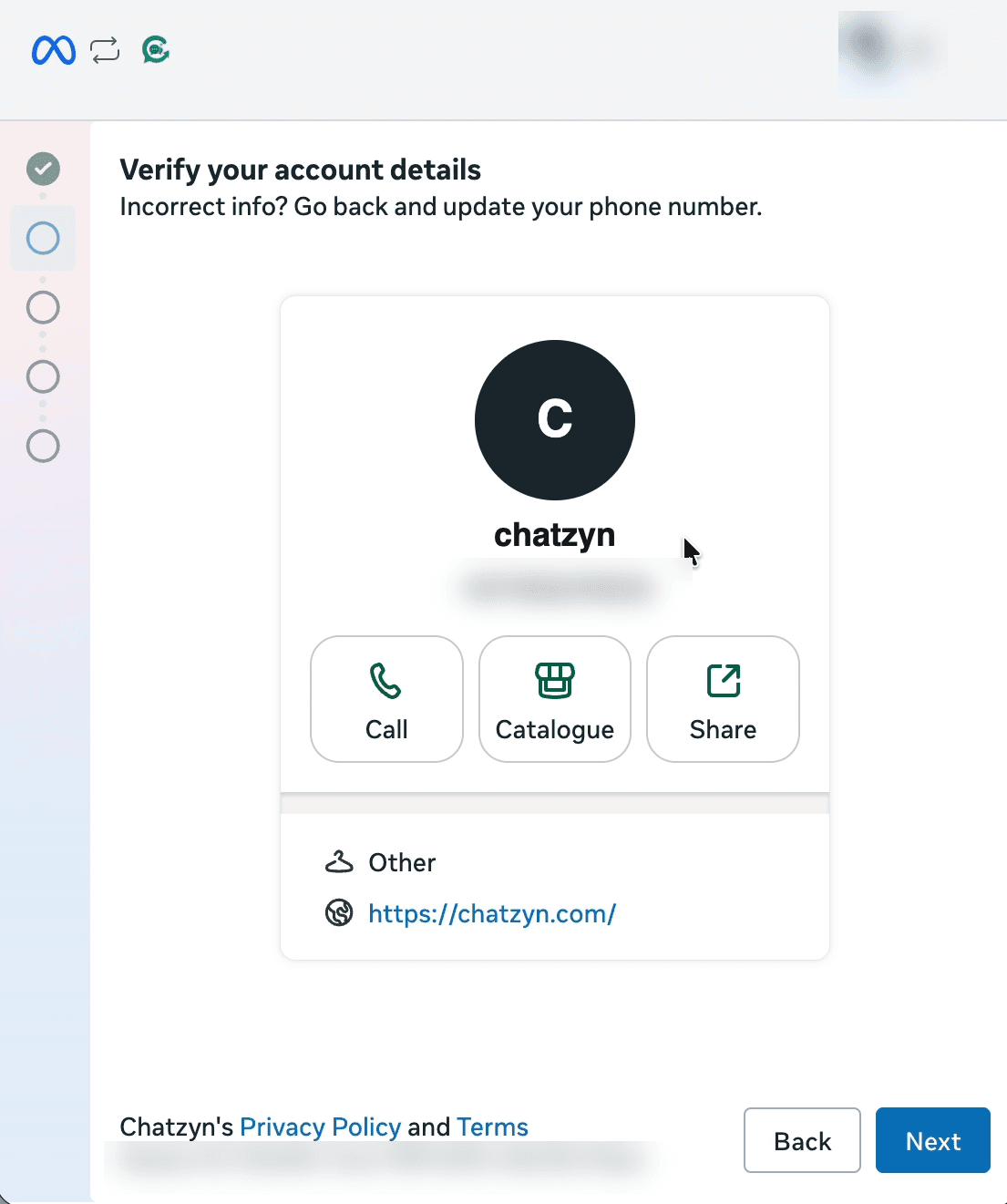
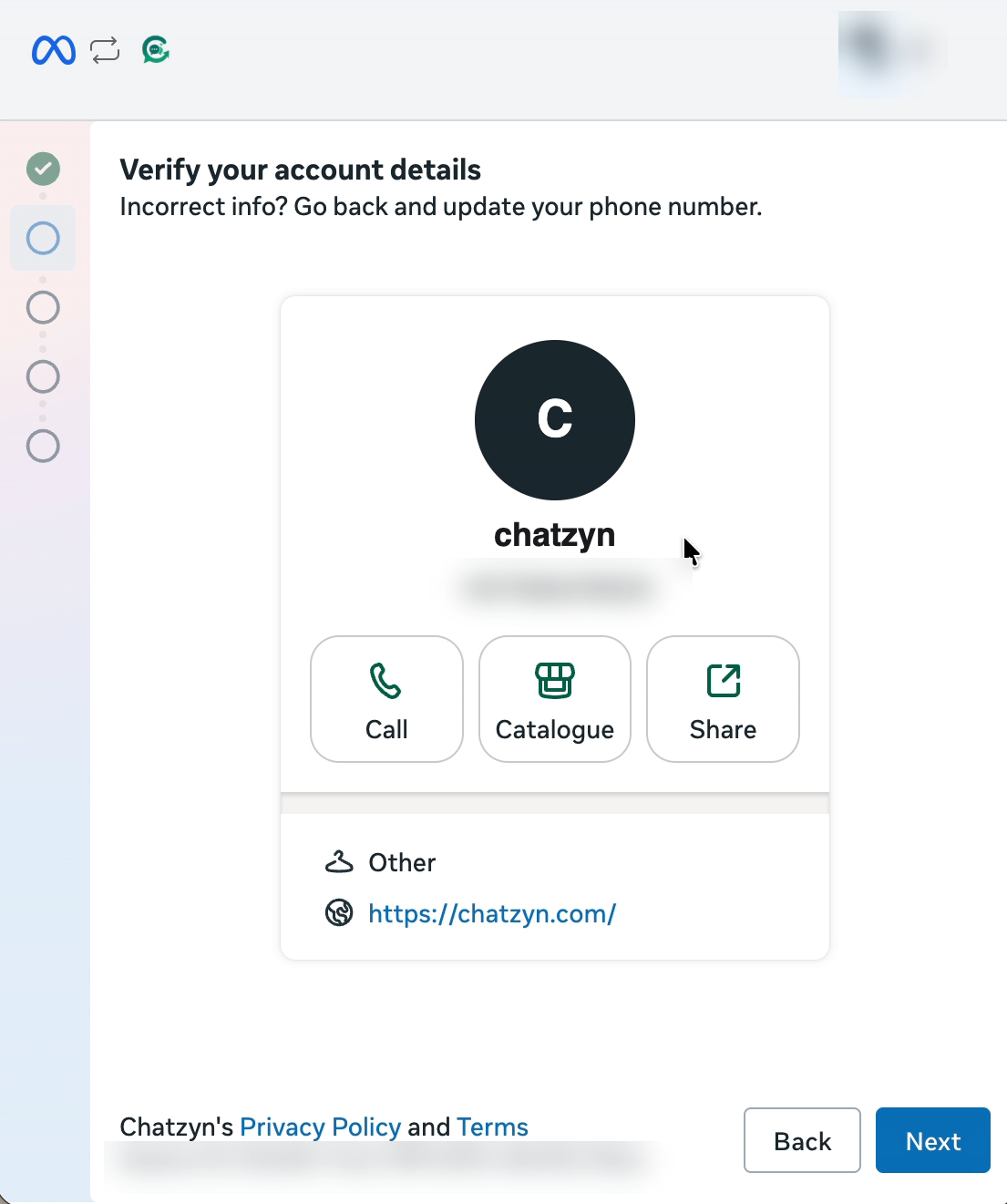
Meta asks for the number first, before the business portfolio. Type the number that is in your WhatsApp Business app. The next screen shows that number's business profile: check it is yours and press Next.
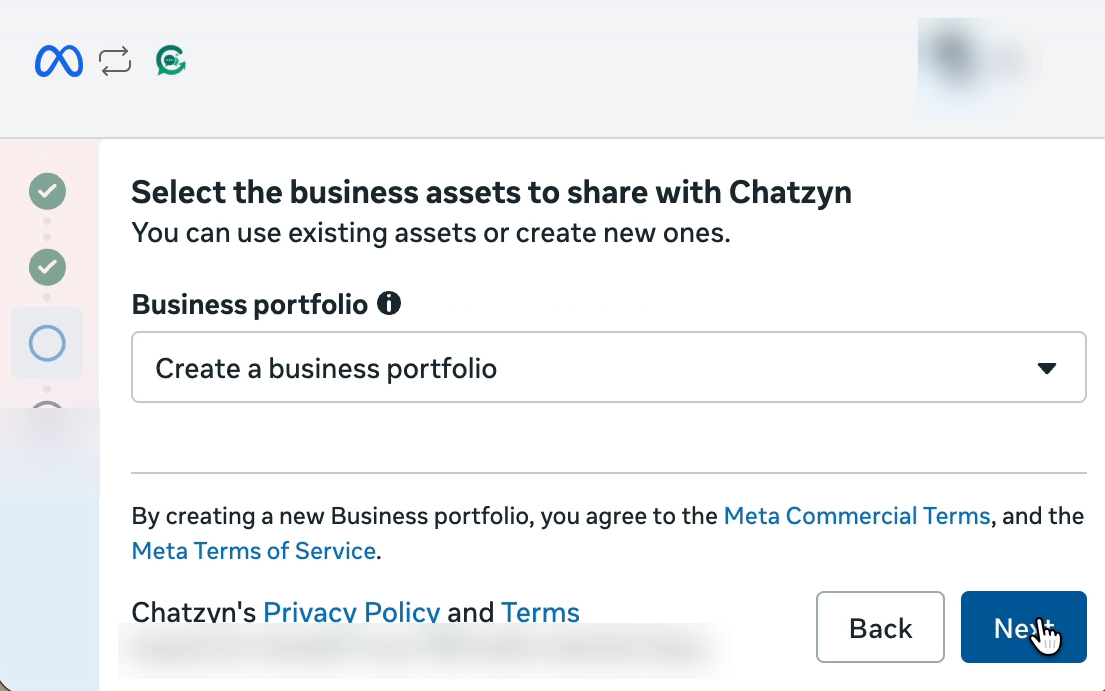
4.Choose your business portfolio and WhatsApp account
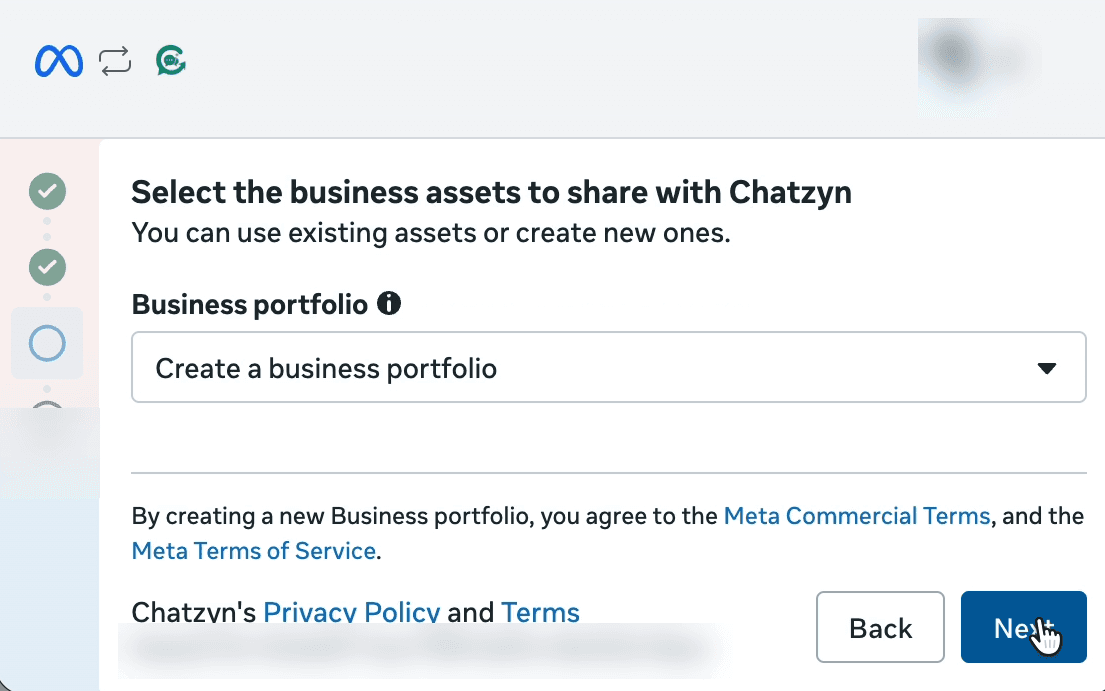
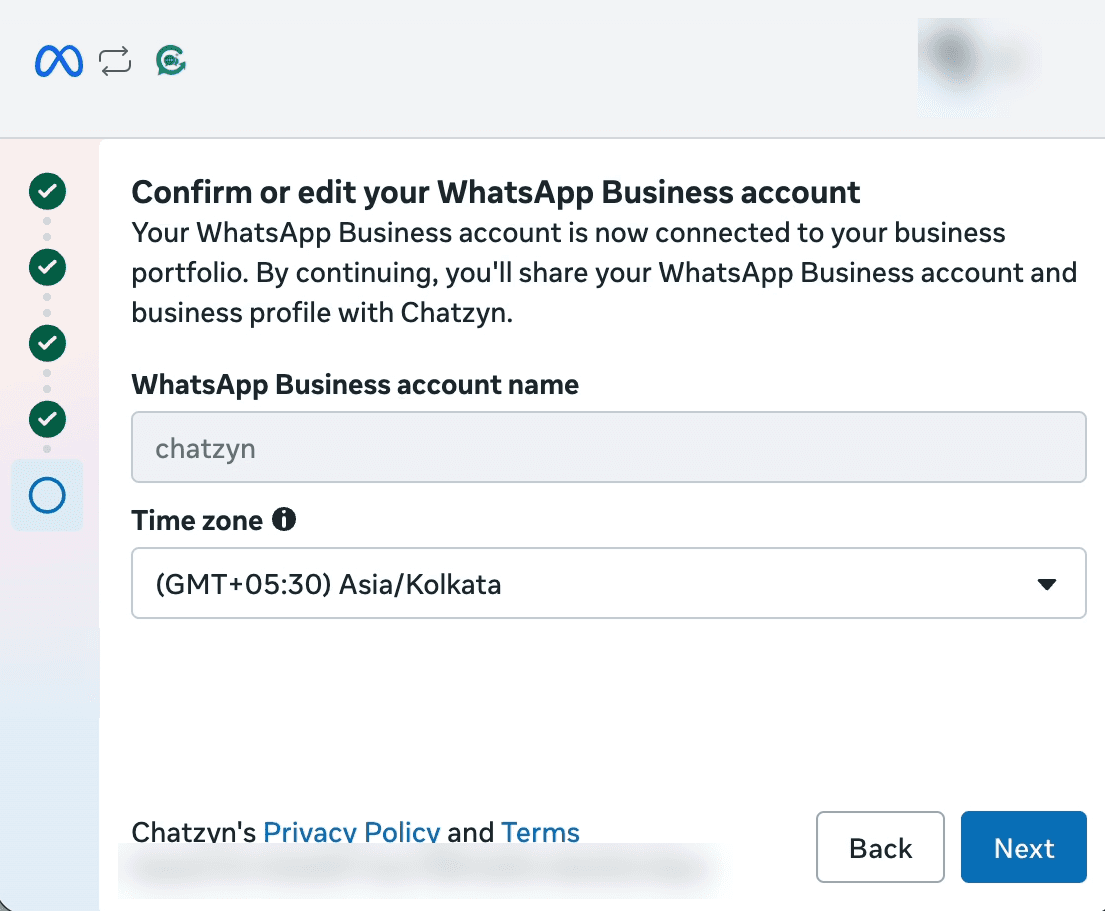
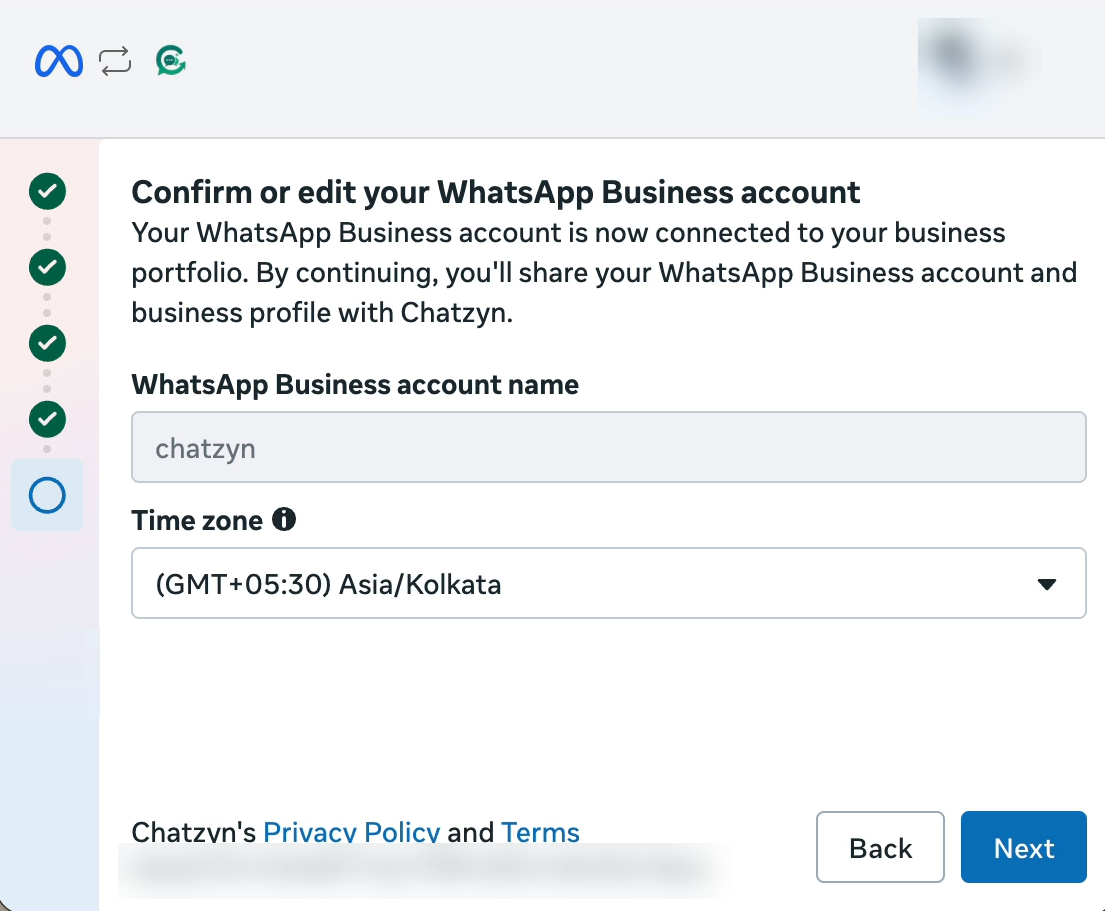
Choose your business portfolio, or create one for free, then confirm the WhatsApp Business account name and time zone.
5.Leave the QR code on the screen
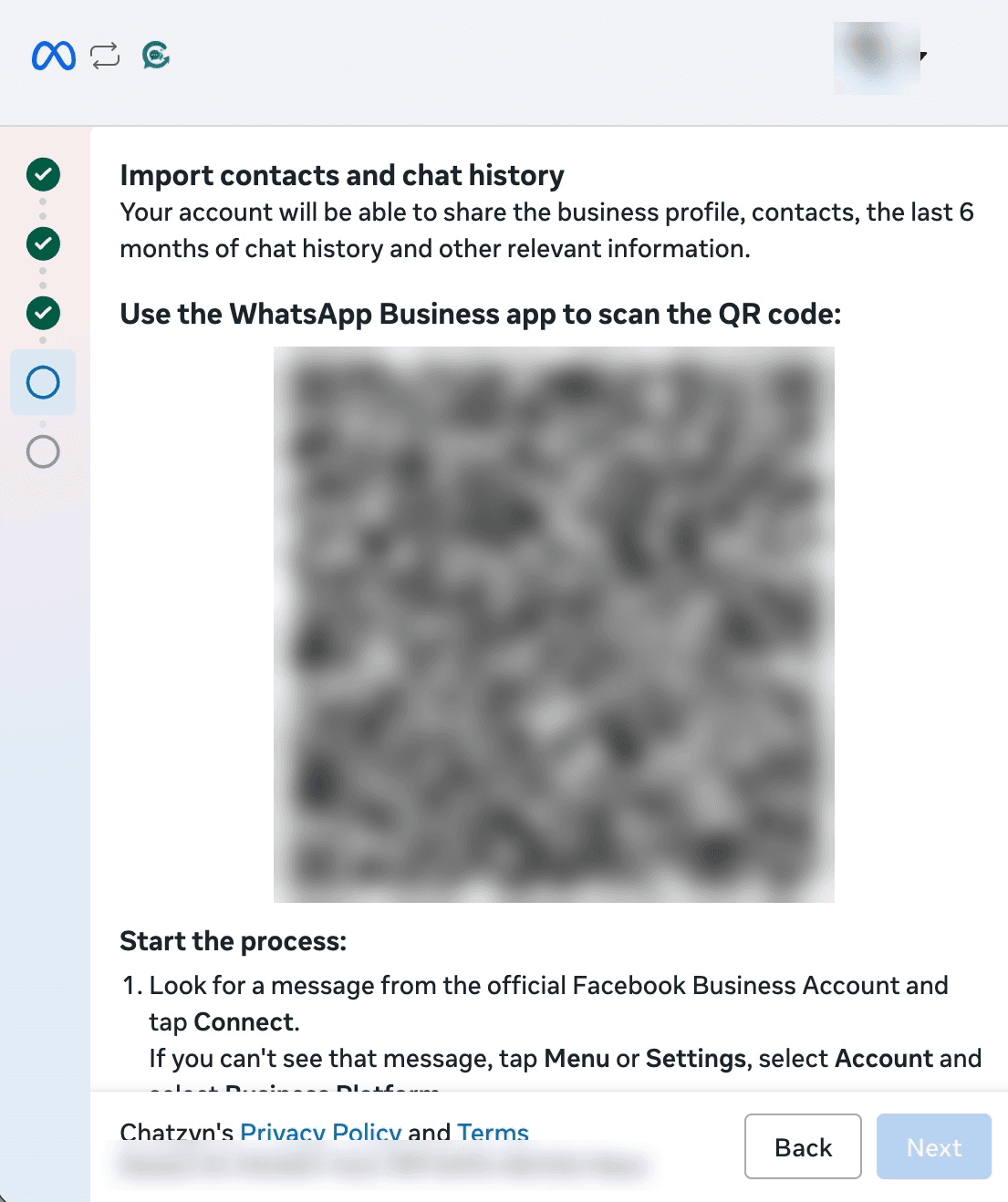
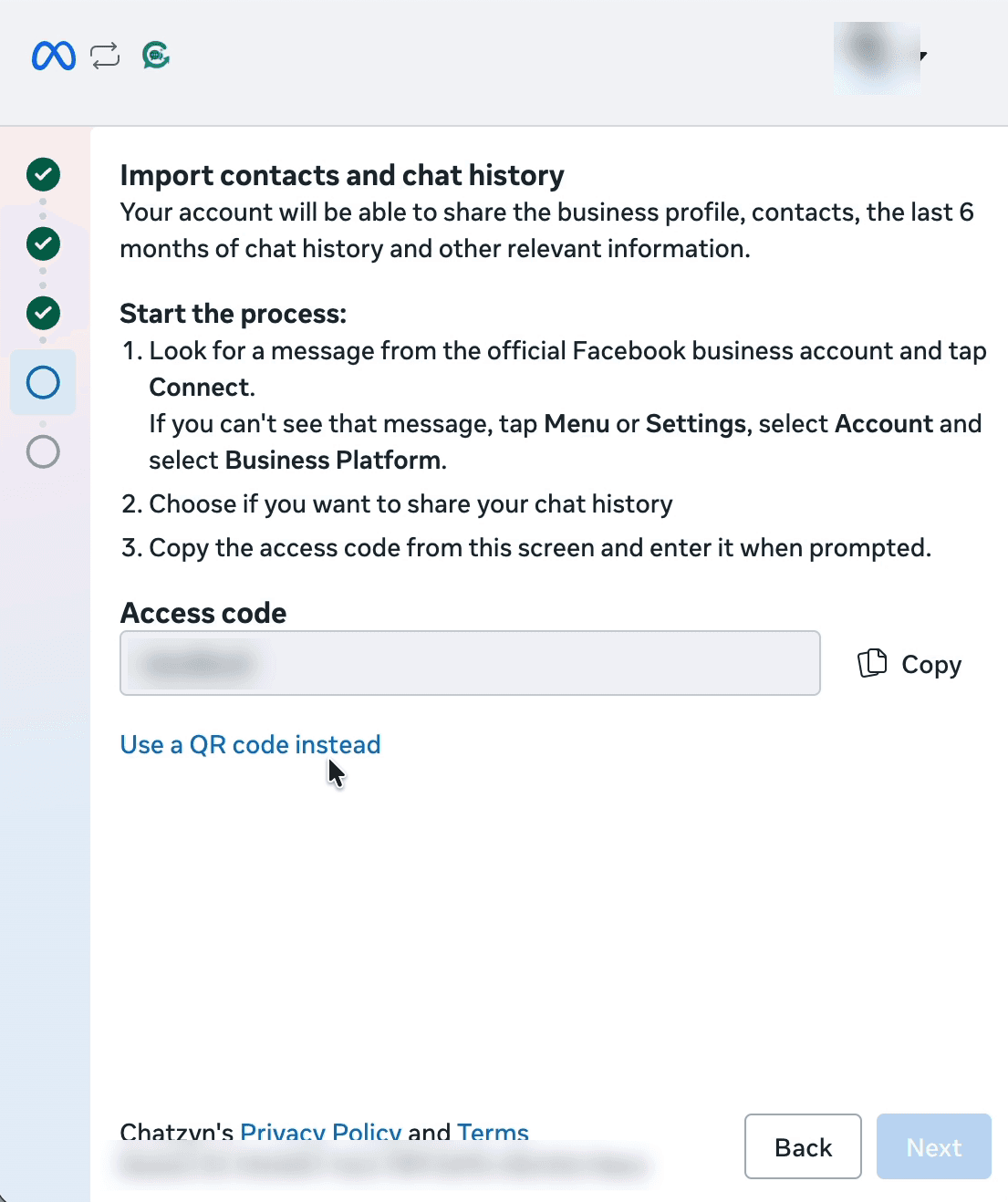
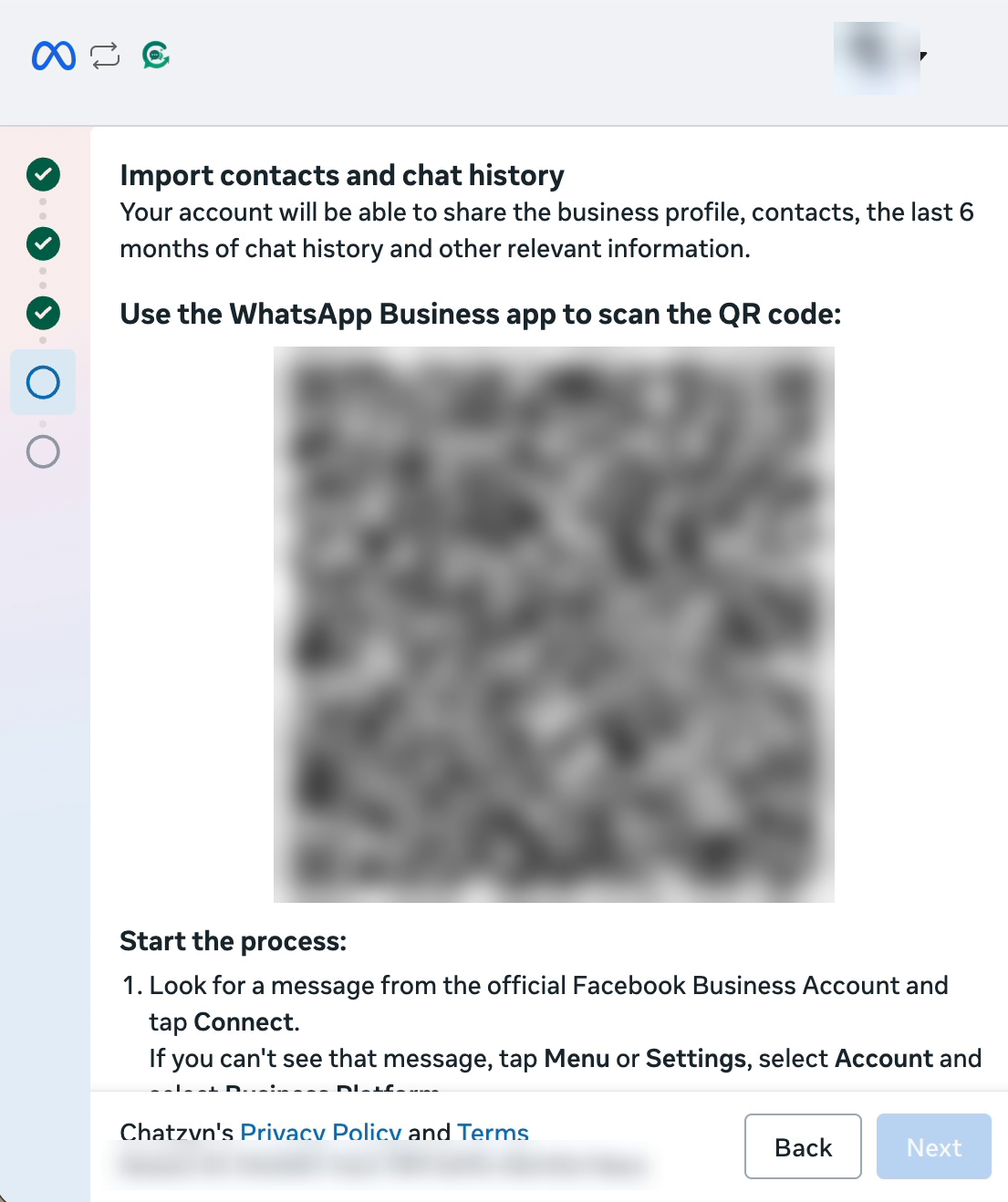
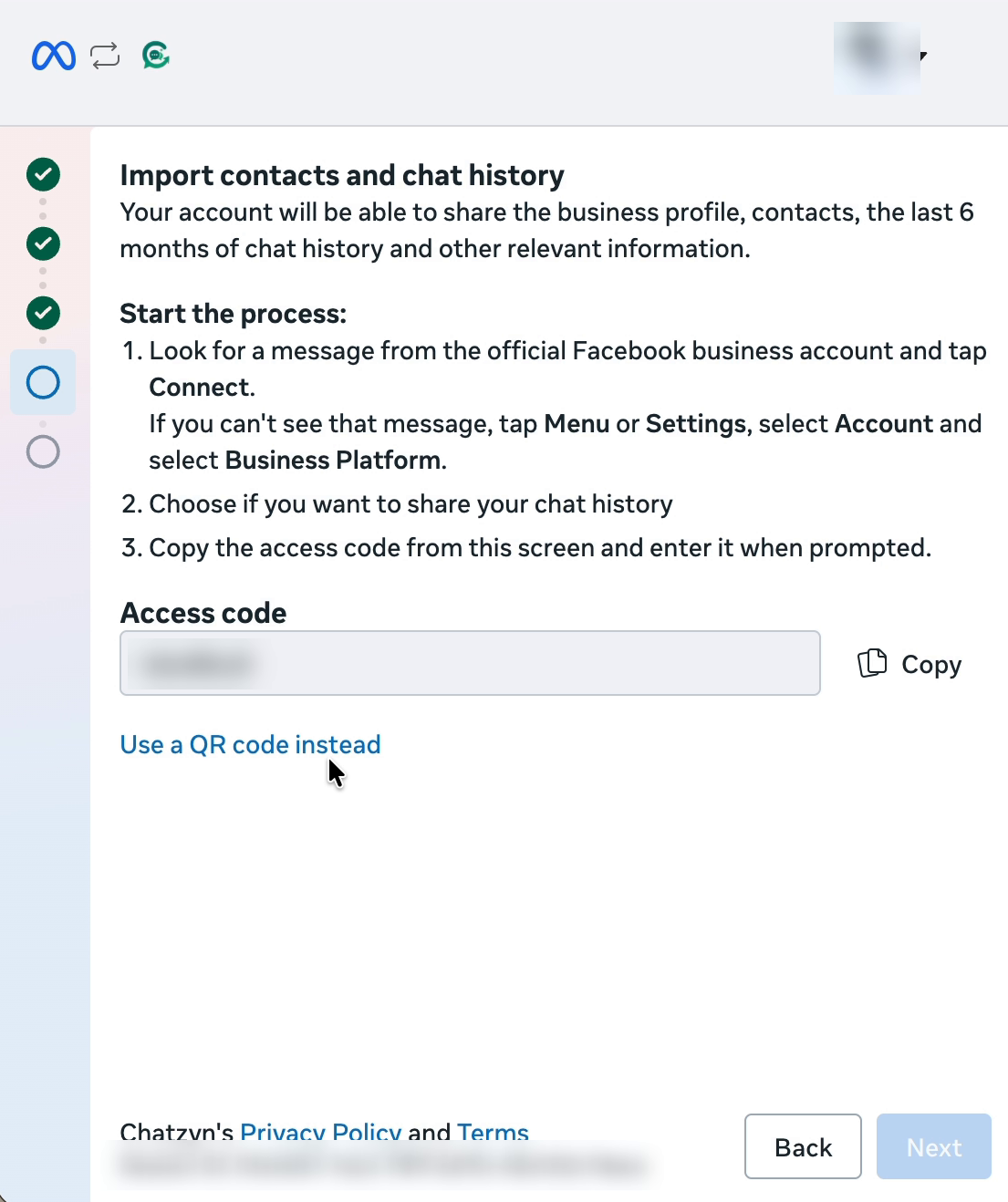
Meta shows a QR code, and offers an access code instead if you would rather type one. Leave it on screen and pick up the phone: everything from here happens in the app.
6.On the phone: tap Connect
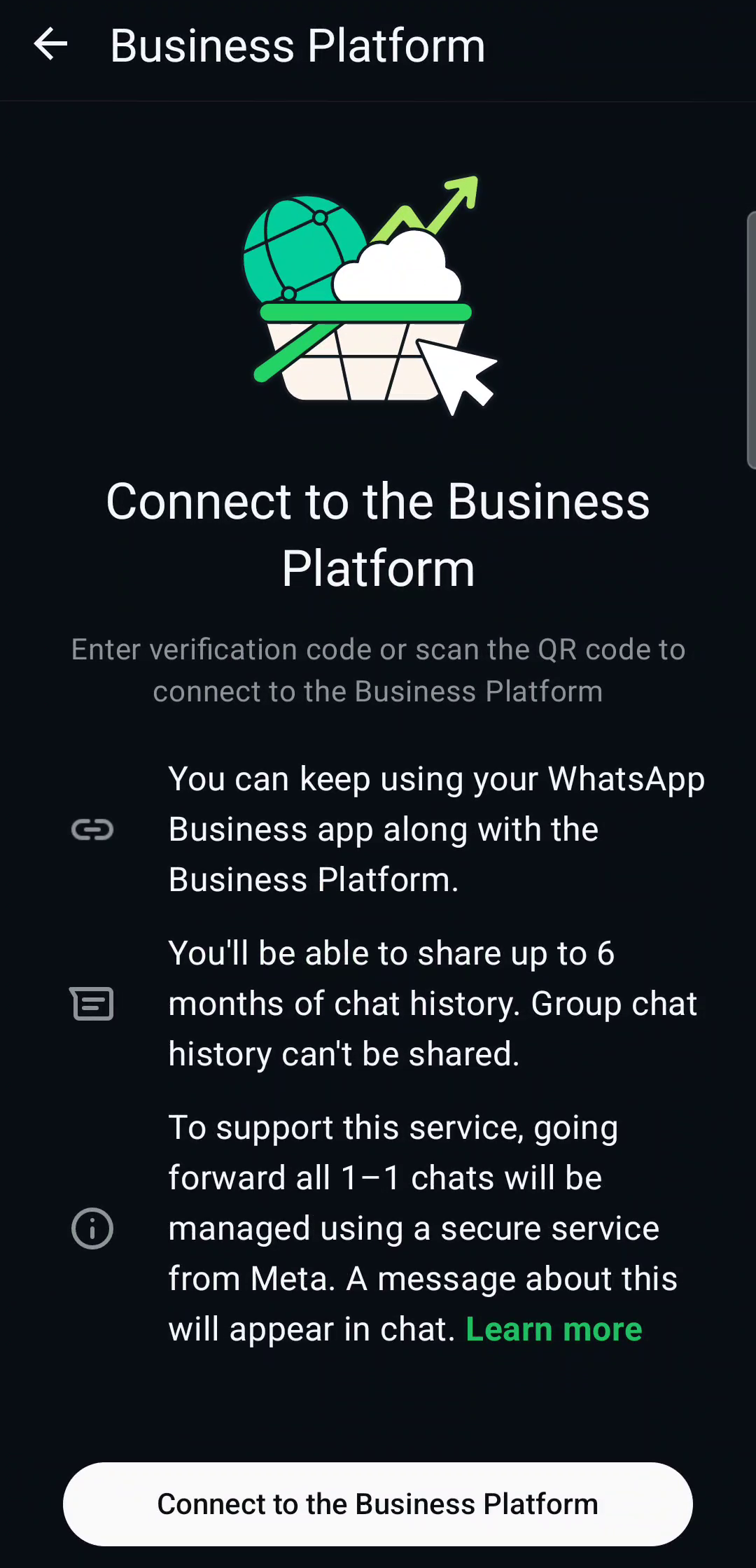
In the WhatsApp Business app, open the message from Facebook Business and tap Connect. Can't see it? Go to Settings → Account → Business Platform.
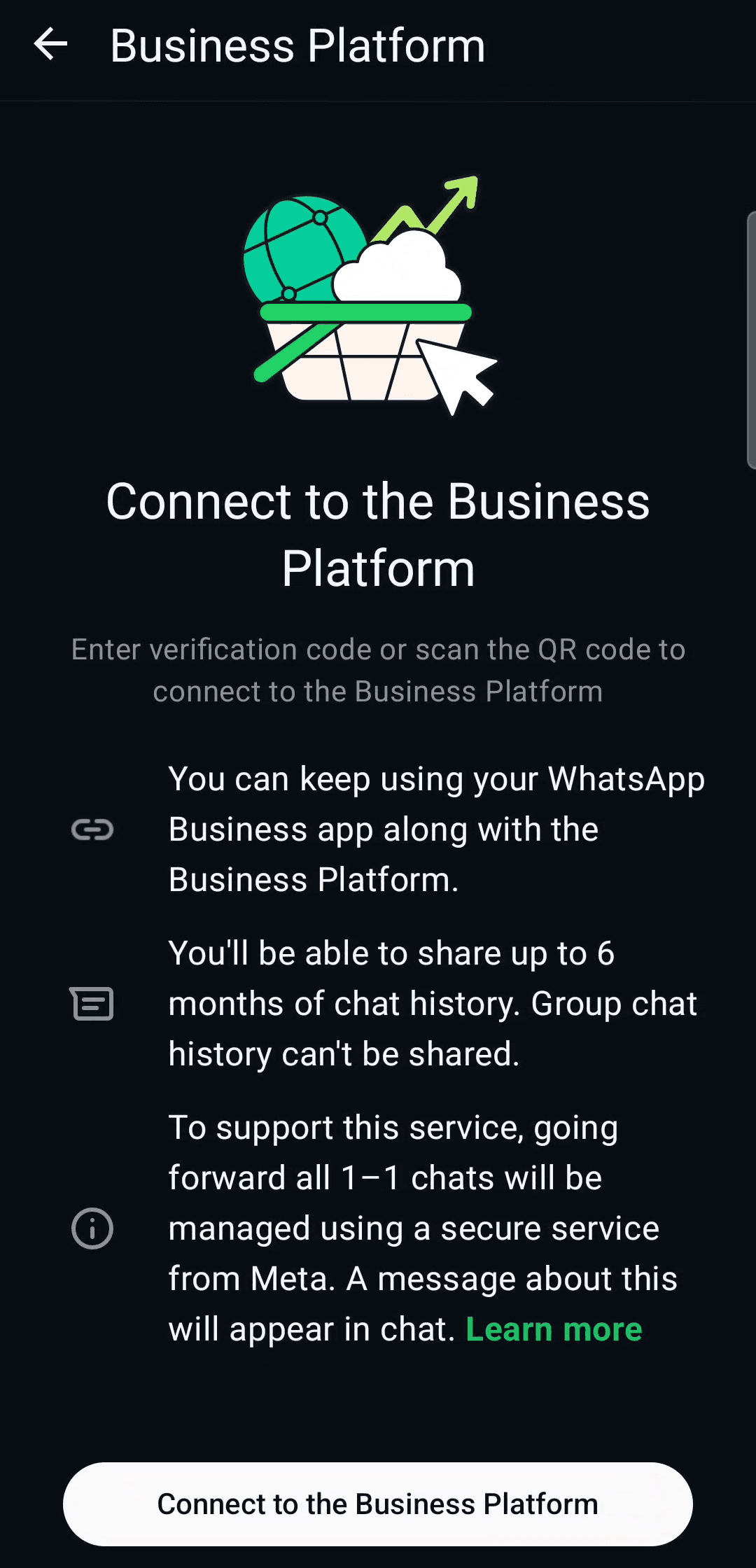
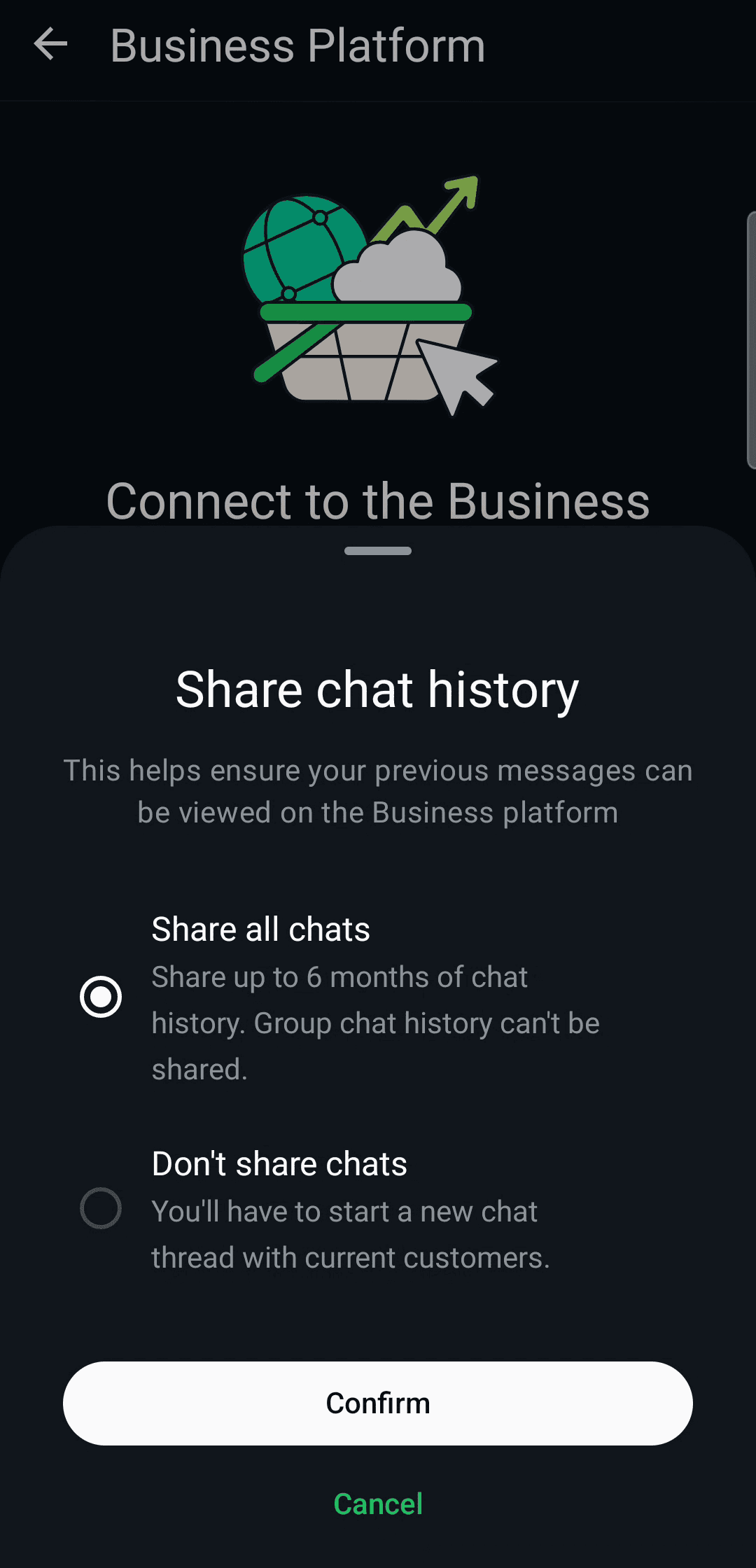
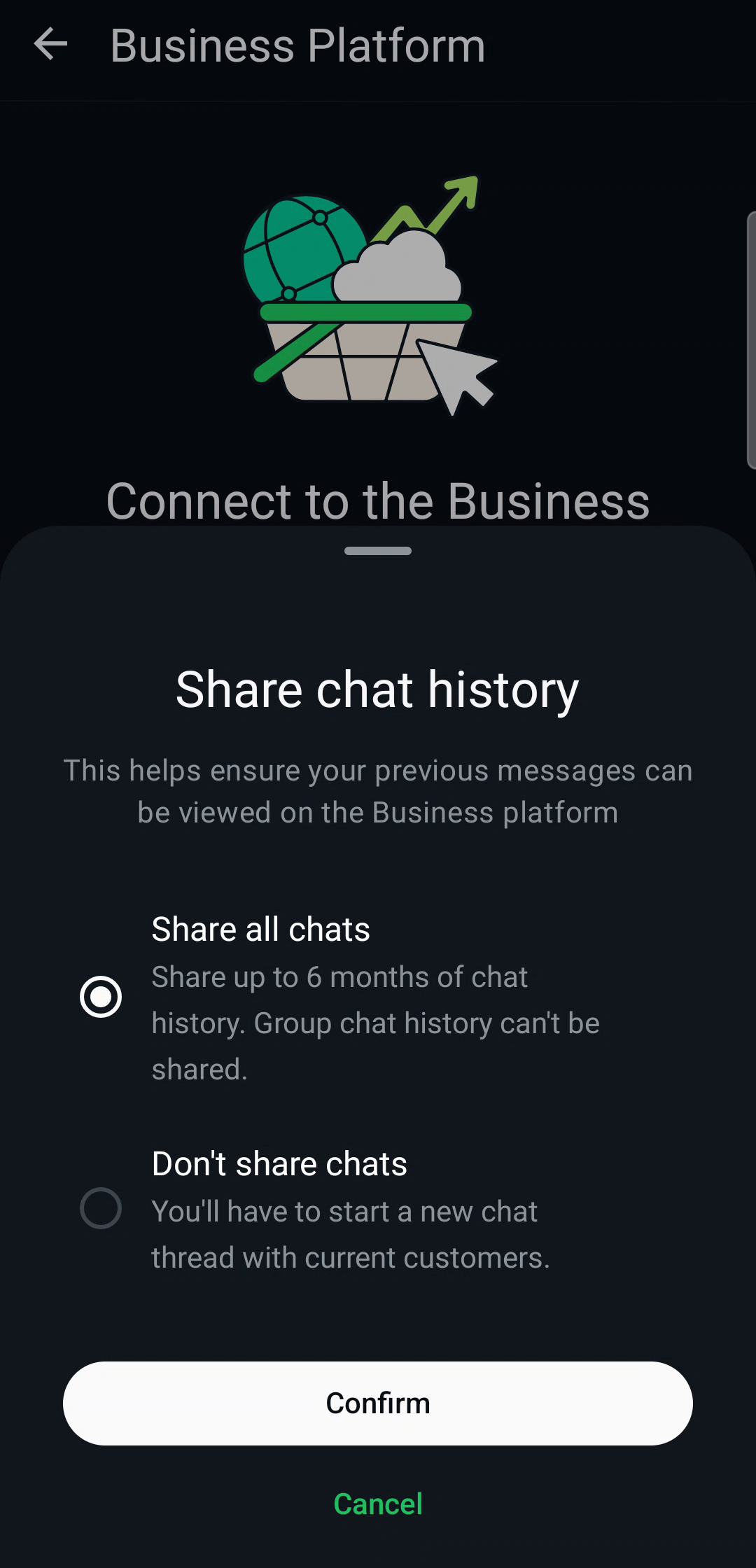
7.Share your chat history, or don't
“Share all chats” brings up to six months of conversations into your inbox here. “Don't share chats” starts clean. Group chats are never shared either way.
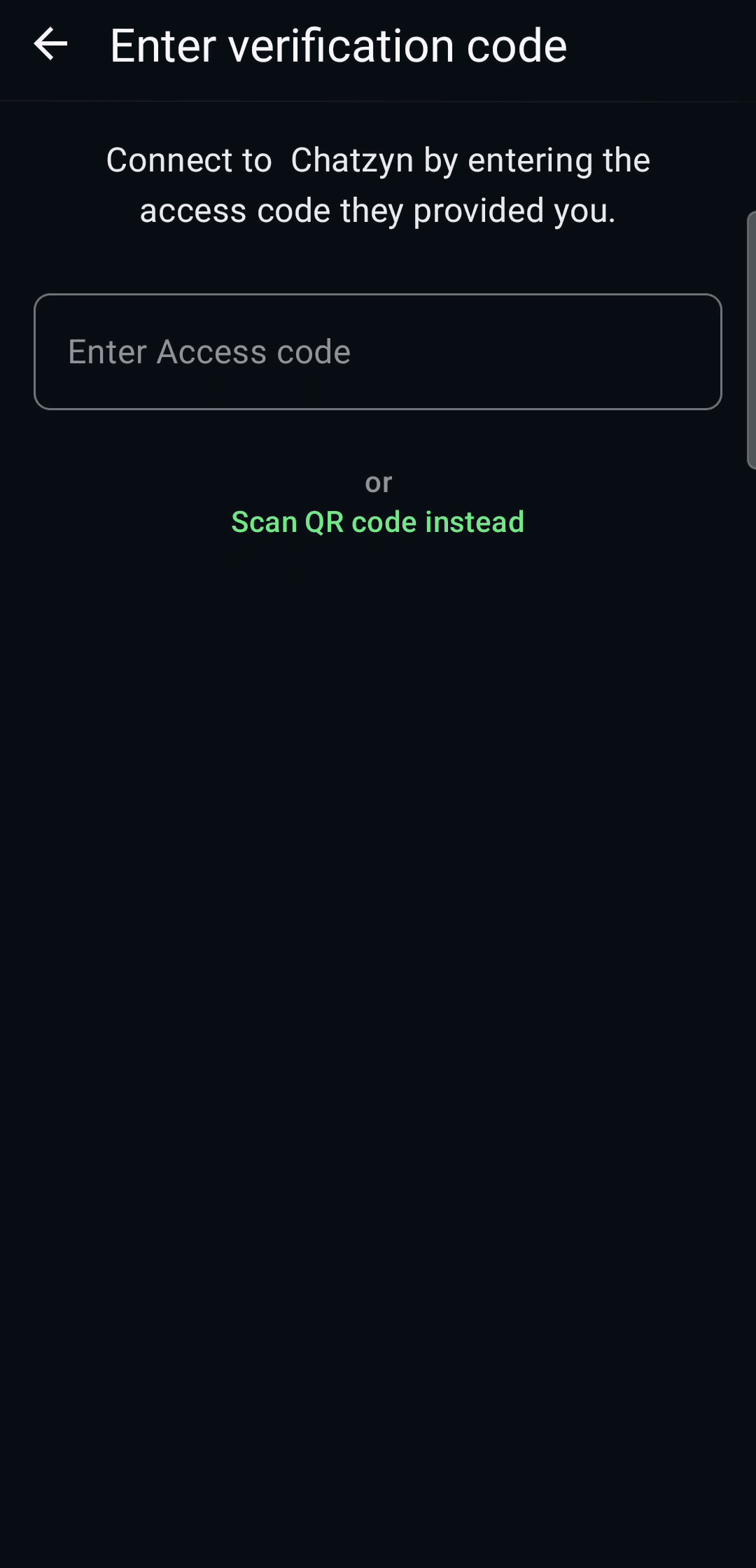
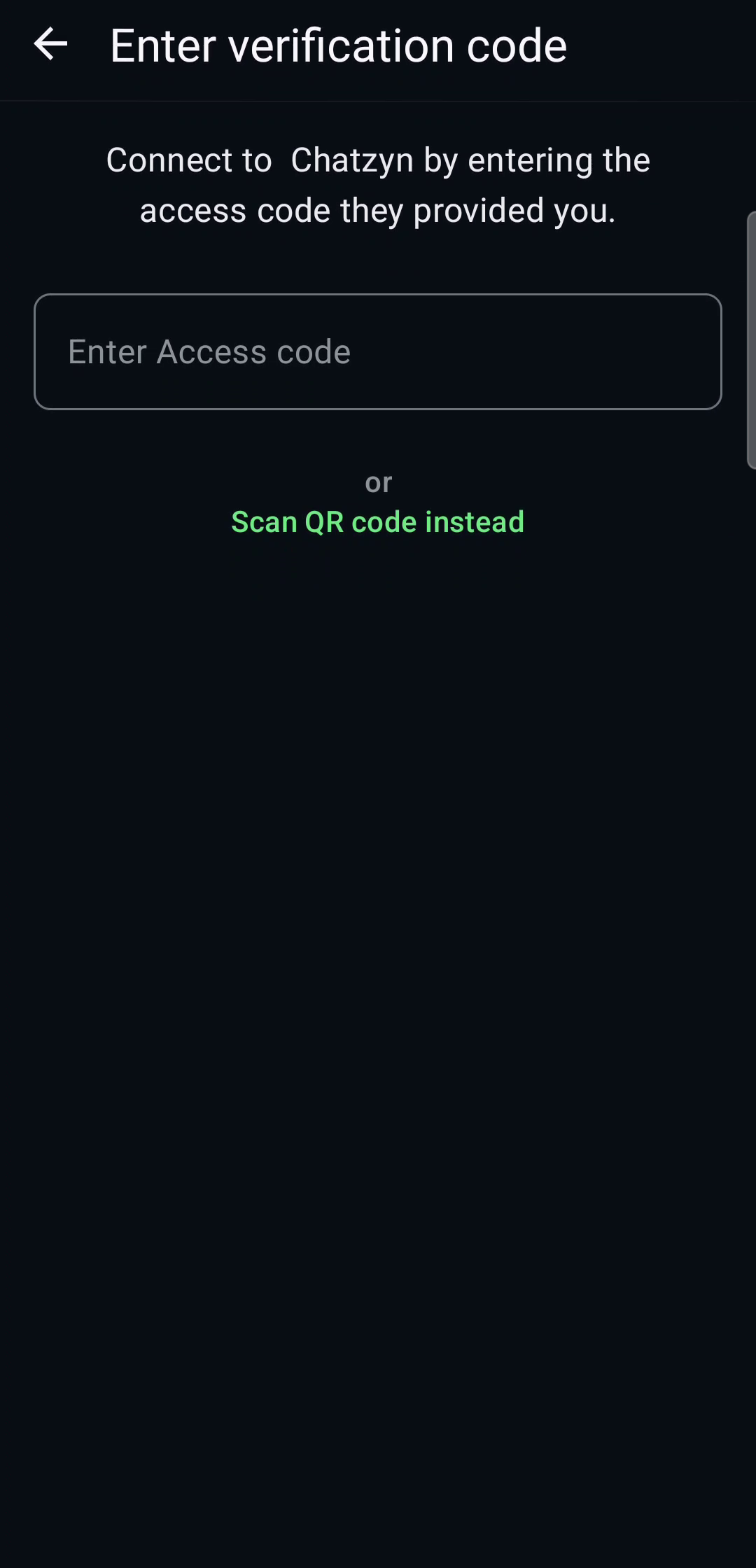
8.Scan the QR code, or type the access code
Tap “Scan QR code instead” and point the phone at the computer, or type the access code shown on the computer. Connecting takes up to 45 seconds.
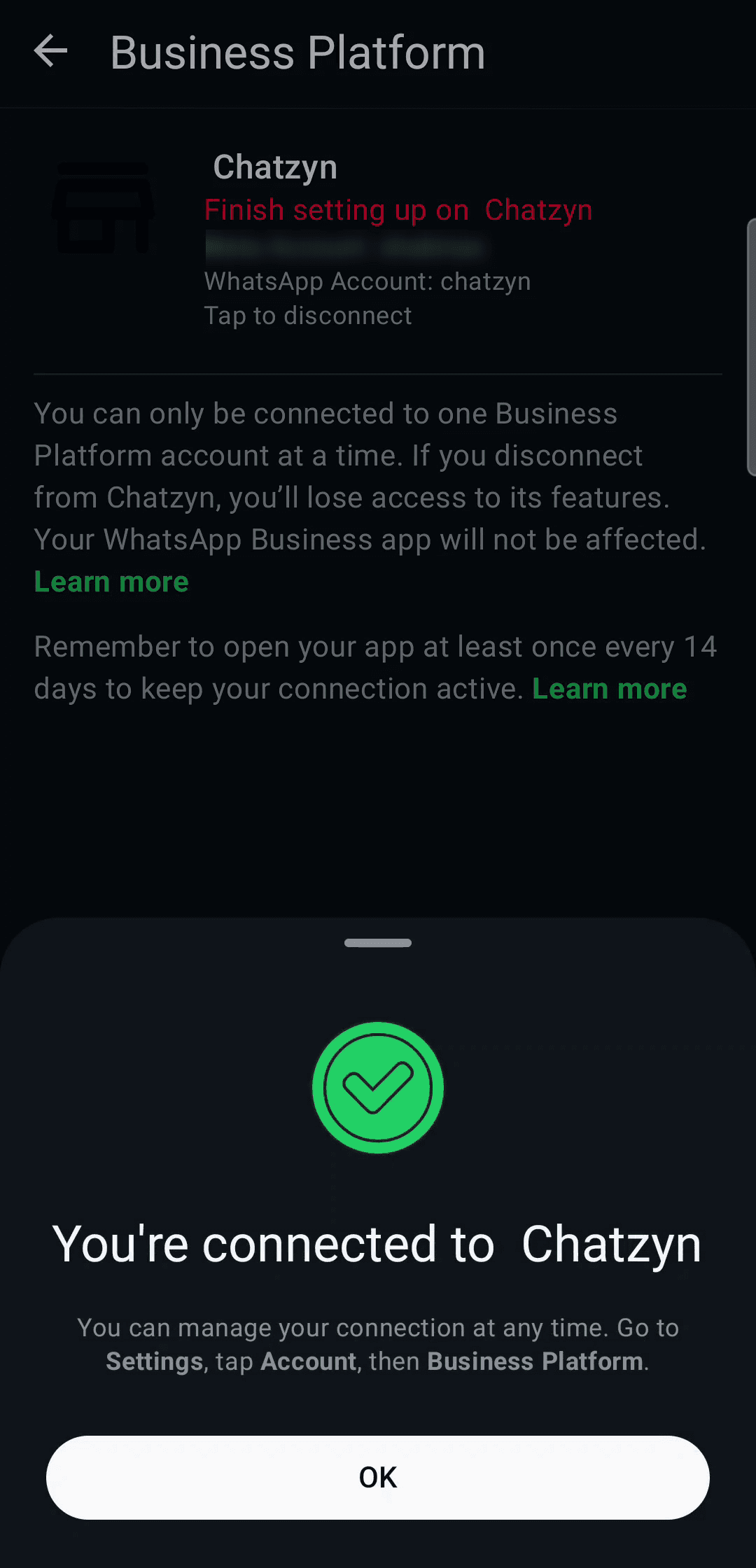
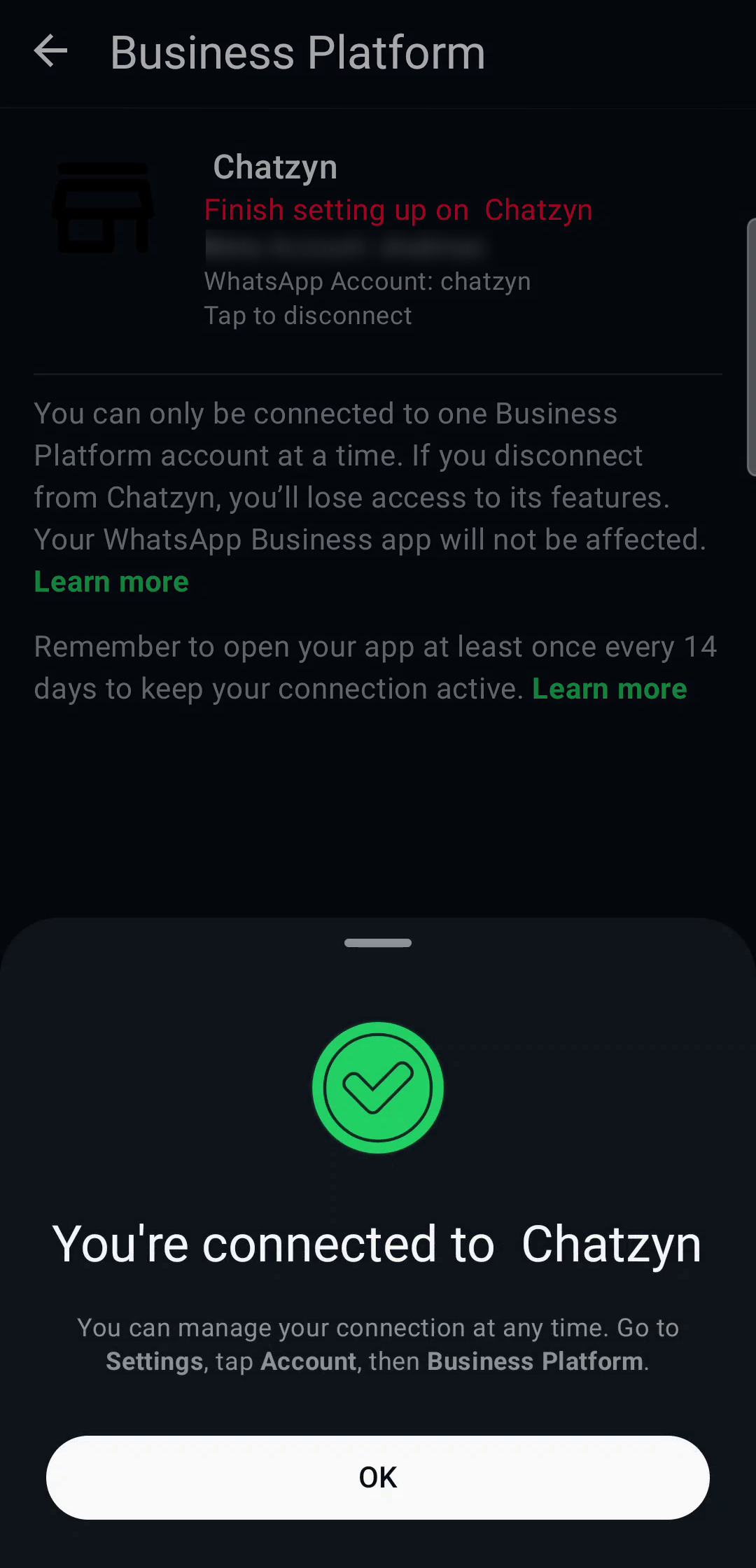
9.The phone says you're connected
The app shows “You're connected”. Under it, “Finish setting up on Chatzyn” may show in red: that is normal, and it clears by itself in about four minutes, once the computer side finishes. Do not tap disconnect.
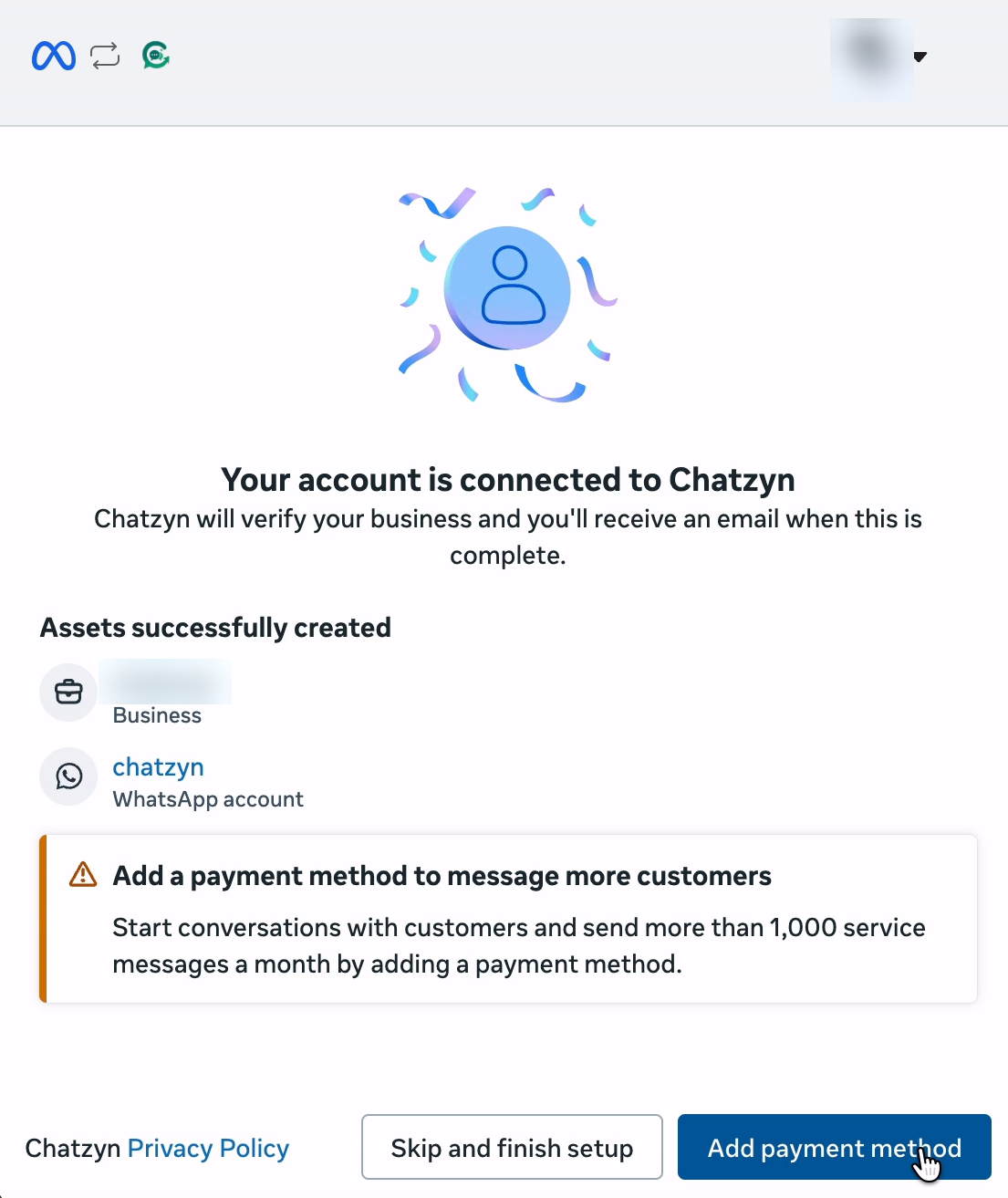
10.Back on the computer: the payment method
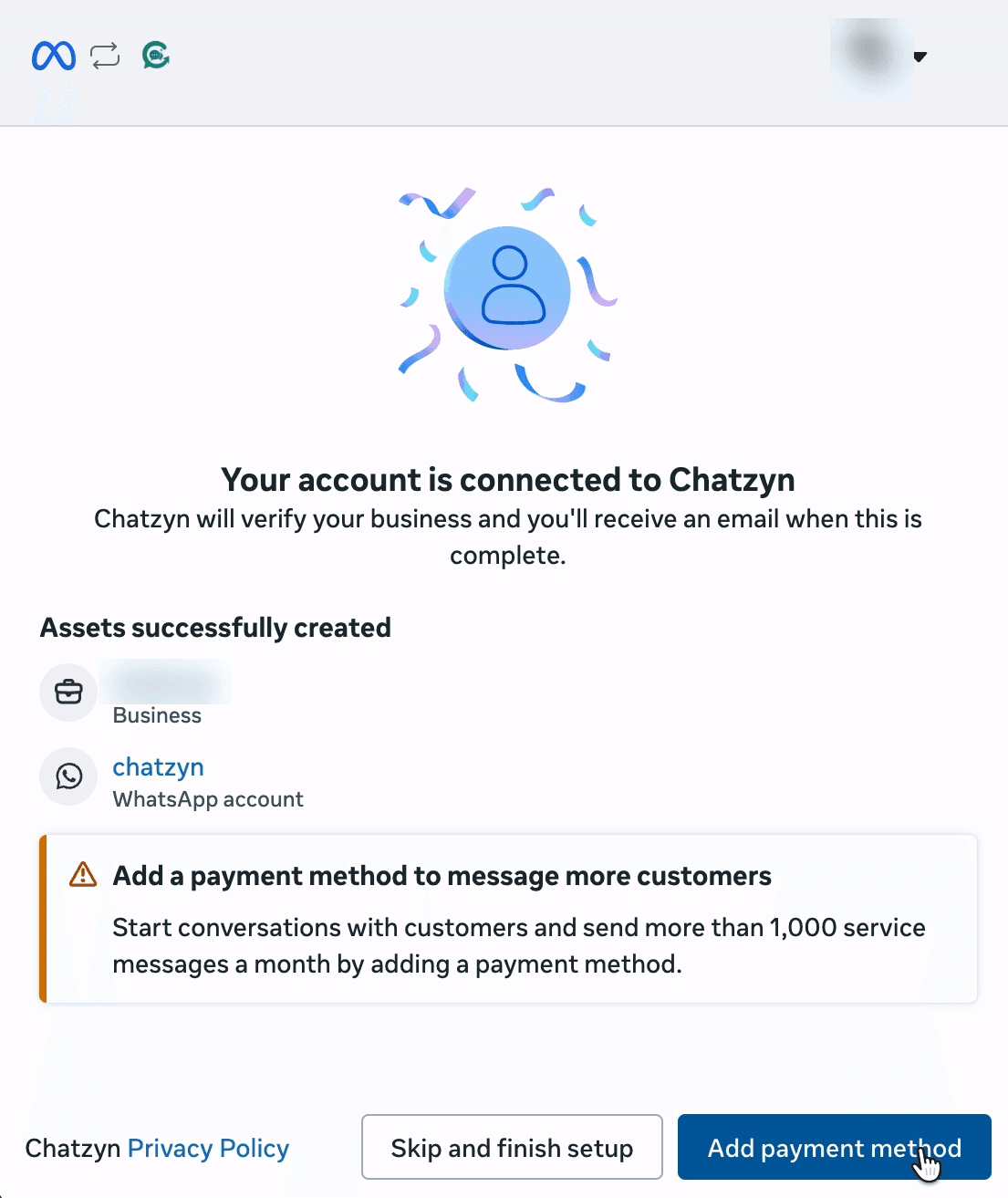
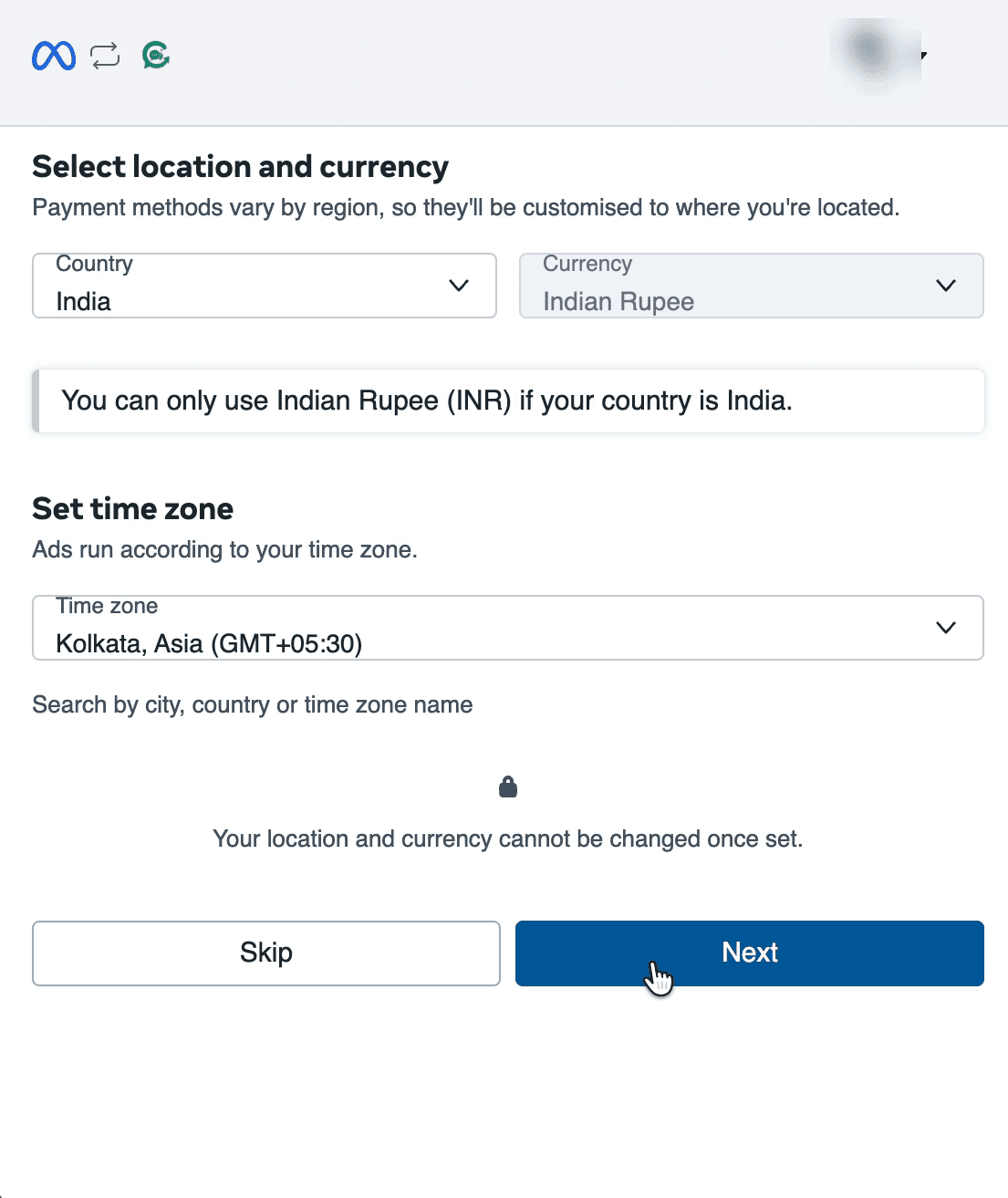
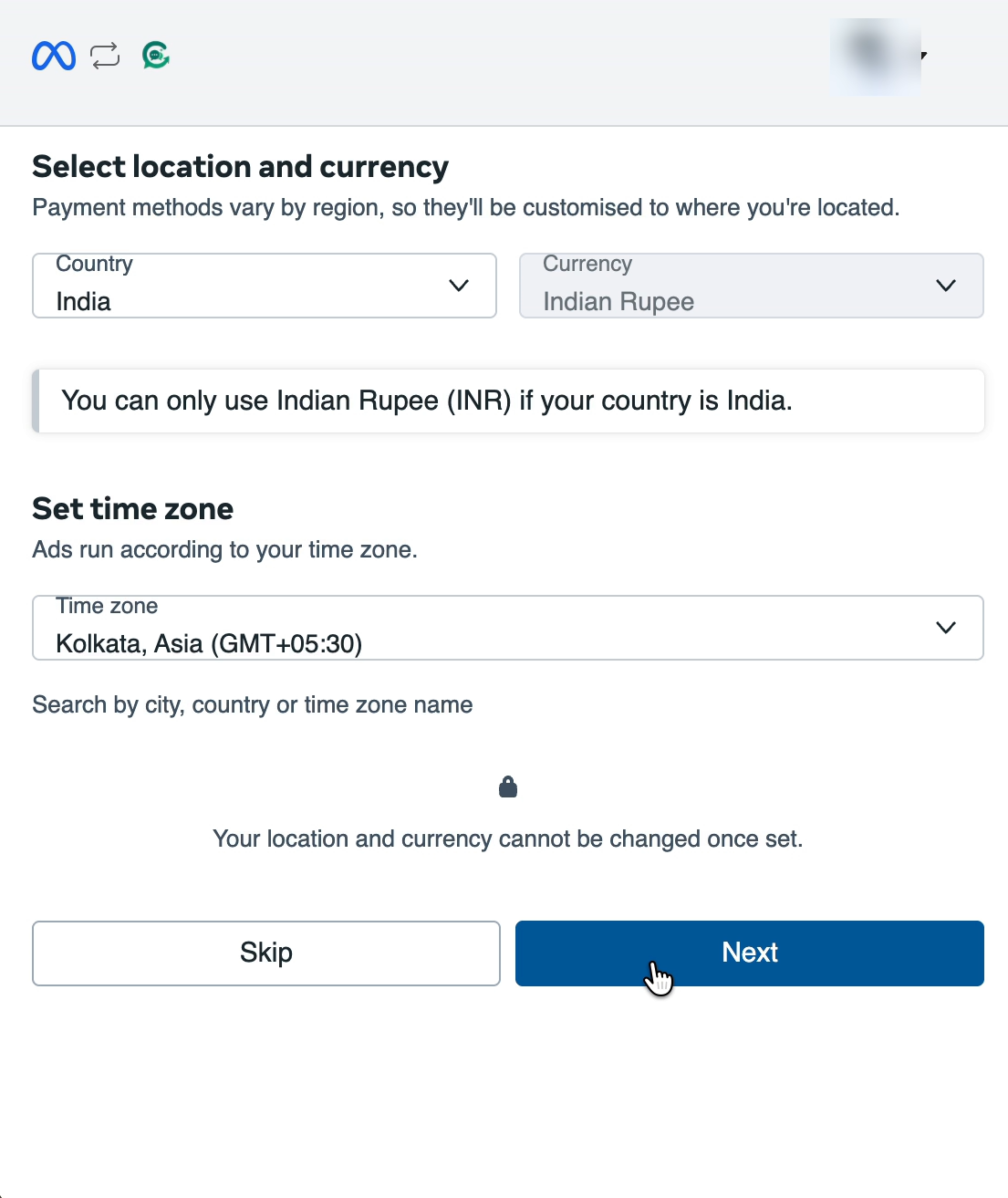
Meta's window says your account is connected and asks for a payment method. That is Meta's own charge for the messages it delivers, not ours, so you are not paying twice. Pick your country and currency (Meta does not let you change them later), then add a card now, or press Skip and finish setup and add it later.
11.Check the number is live
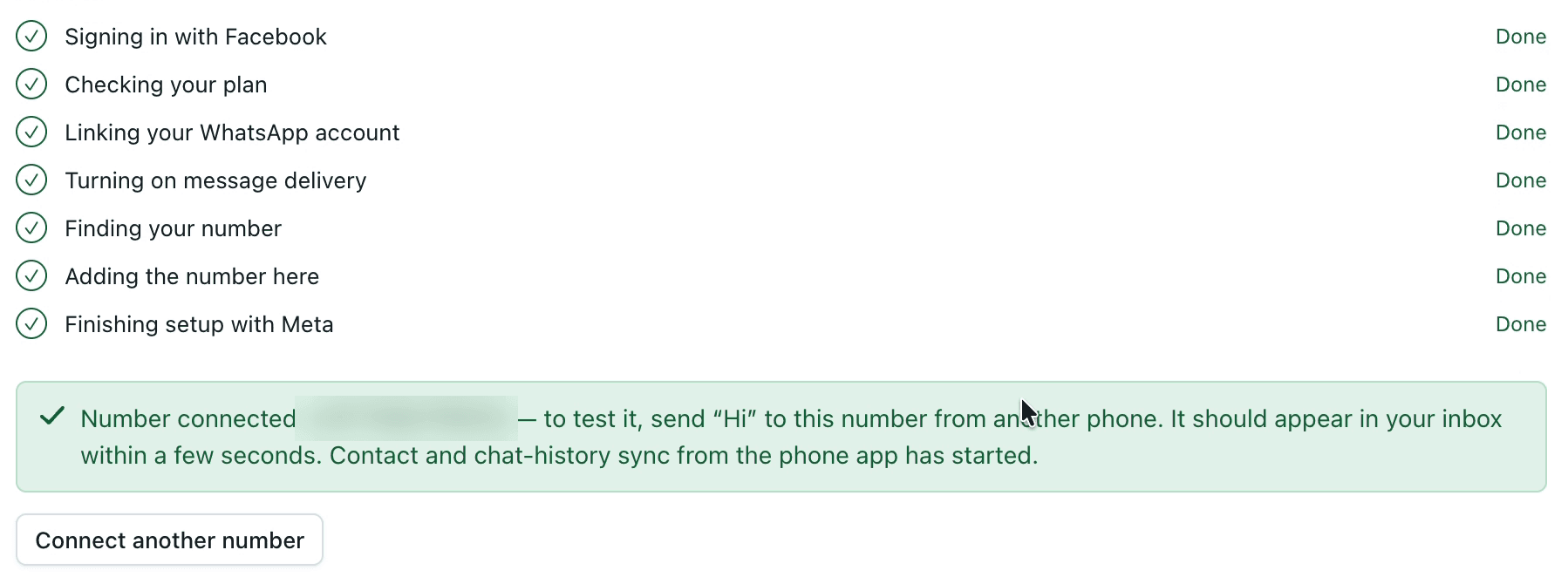
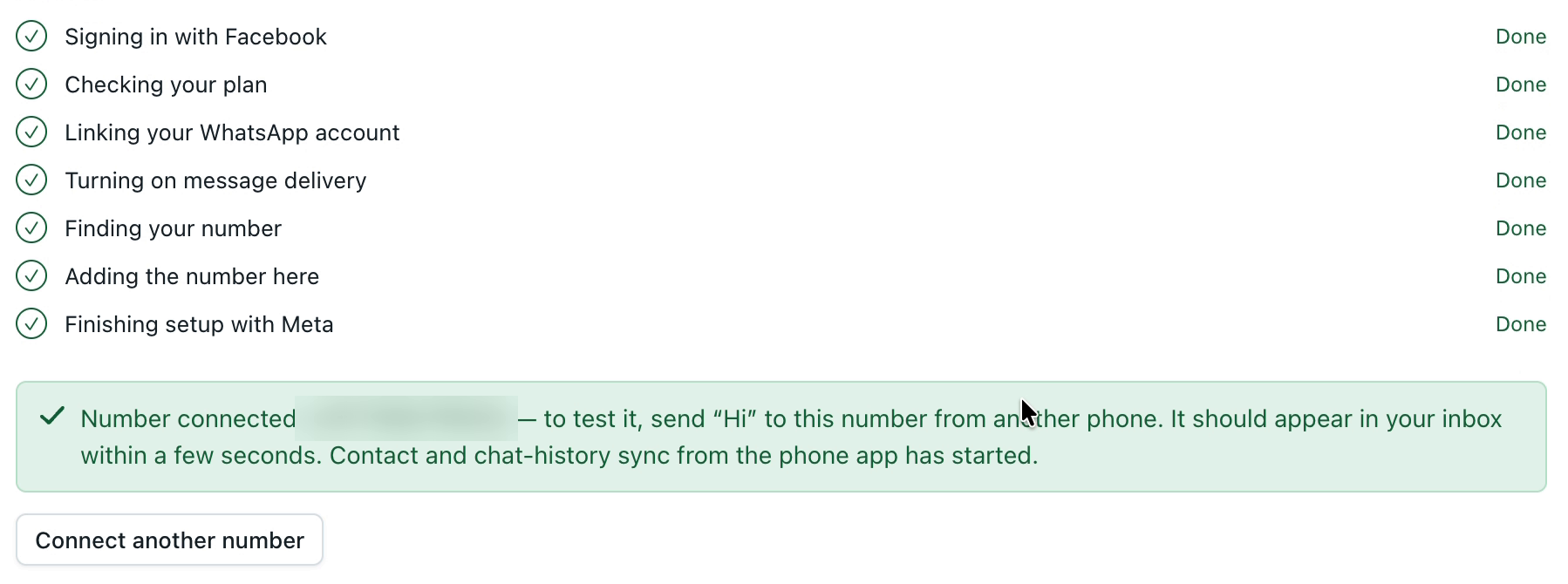
The window closes and Channels shows “Number connected”. Message the number from another phone: it arrives in the app as usual, and in your inbox here at the same time. Replies you type in the app show in the inbox too.
If something goes wrong
The connection went inactive
Meta switches a shared number off if the WhatsApp Business app is not opened for 14 days. Open the app at least once every 14 days — that is all it takes. If it already went inactive, open the app; if the number does not come back, press Help → “Talk to a person”.
The phone still says “Finish setting up on Chatzyn”
It clears by itself about four minutes after the computer side finishes. If Meta's window was closed early, the setup never finished: press “Connect with Facebook” again and go to the end.
Can I connect my personal WhatsApp?
No. Only the WhatsApp Business app can share its number. Move the number to the free WhatsApp Business app first (your chats are kept), then connect.
How fast can it send campaigns?
A number shared with the app sends up to about 20 messages a second. For very large campaigns, a separate new number connected on its own sends faster.
“Renew access” appears on the number
Meta's access for a connected number lasts about 60 days. Press “Renew access” on the number and sign in with Facebook again.
Still stuck?
Open the Help button inside the app and press “Talk to a person” — we'll connect it with you.